Real output from two sample designs
Both examples were run through this tool without edits. Layer 1 is the front-most layer; the last layer is the background.
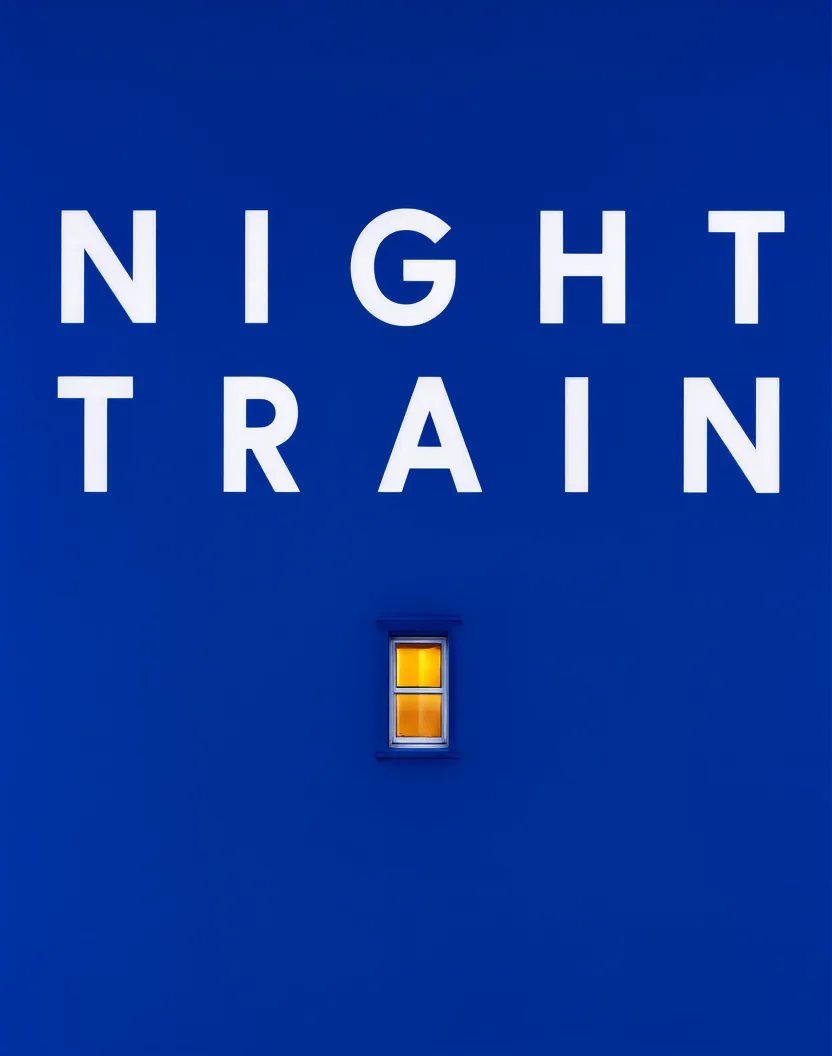
Source poster
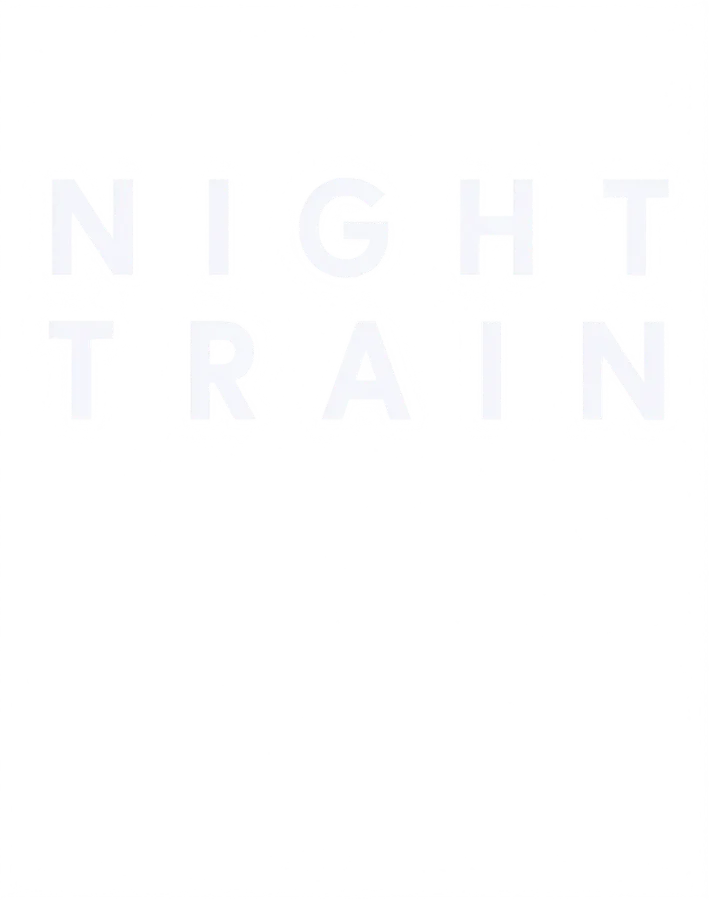
Layer 1 · Headline
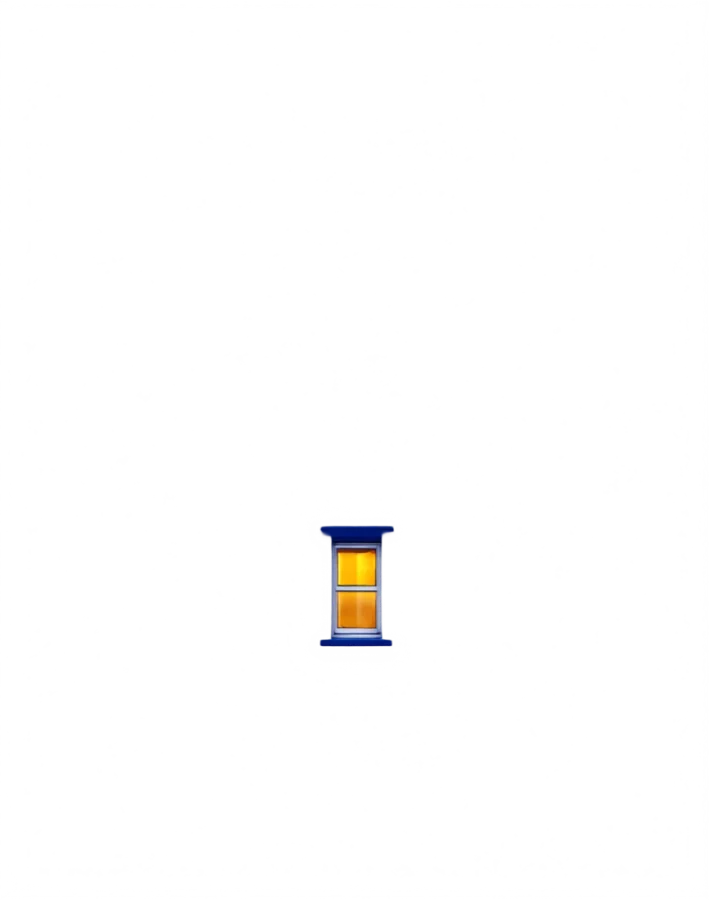
Layer 2 · Window
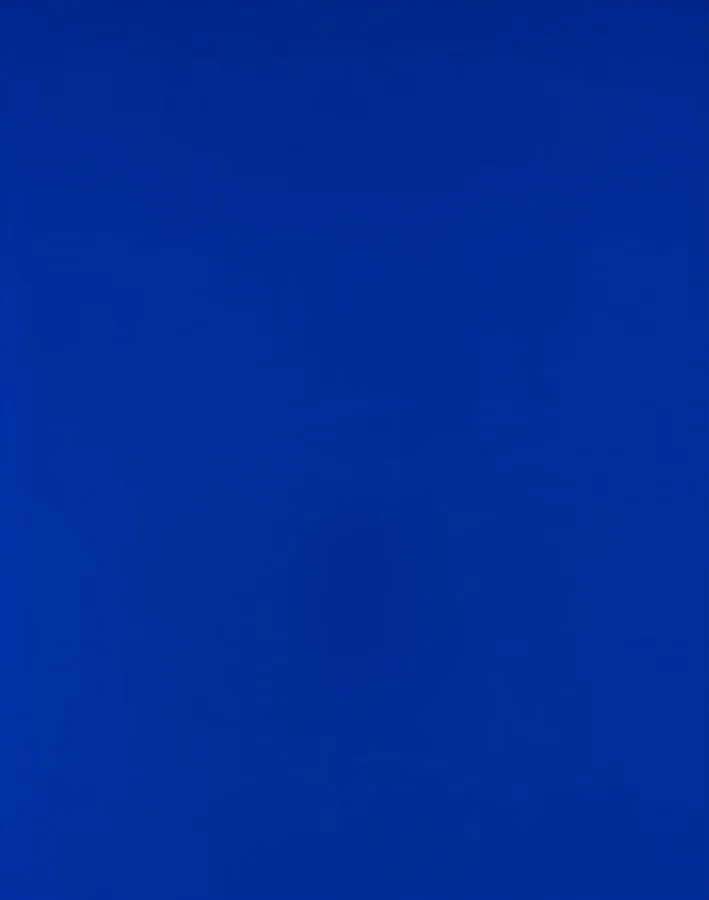
Layer 3 · Background with text and window removed
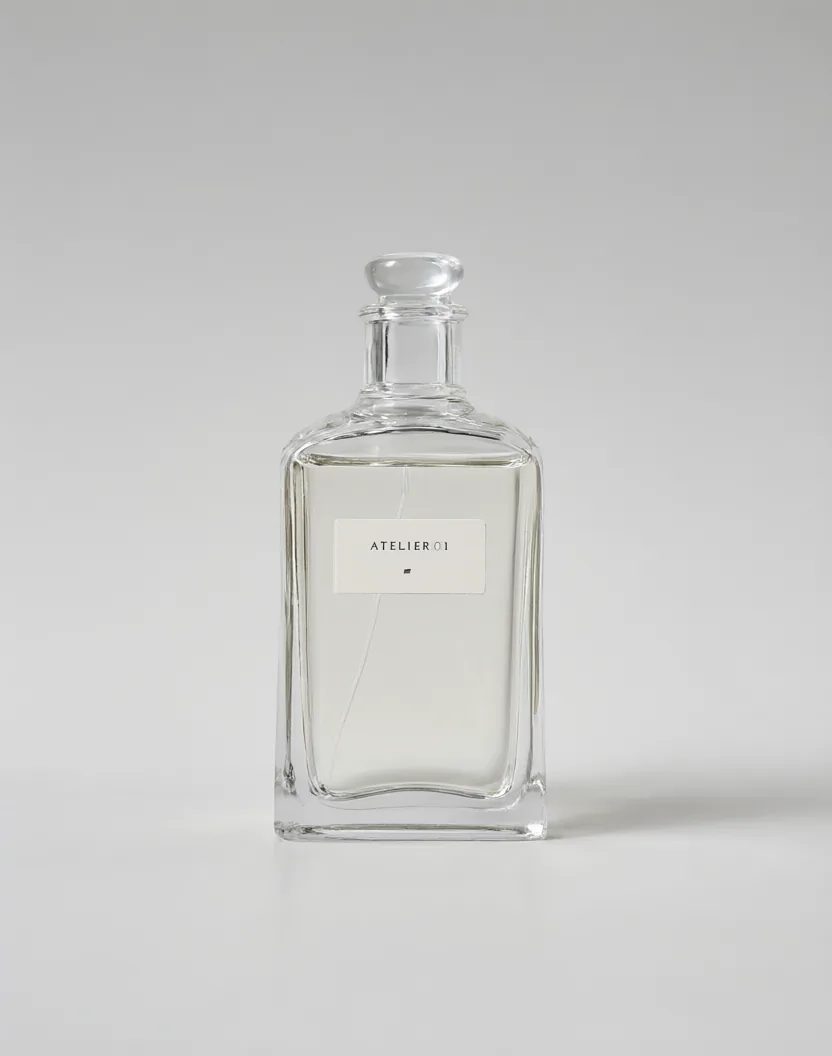
Source label shot
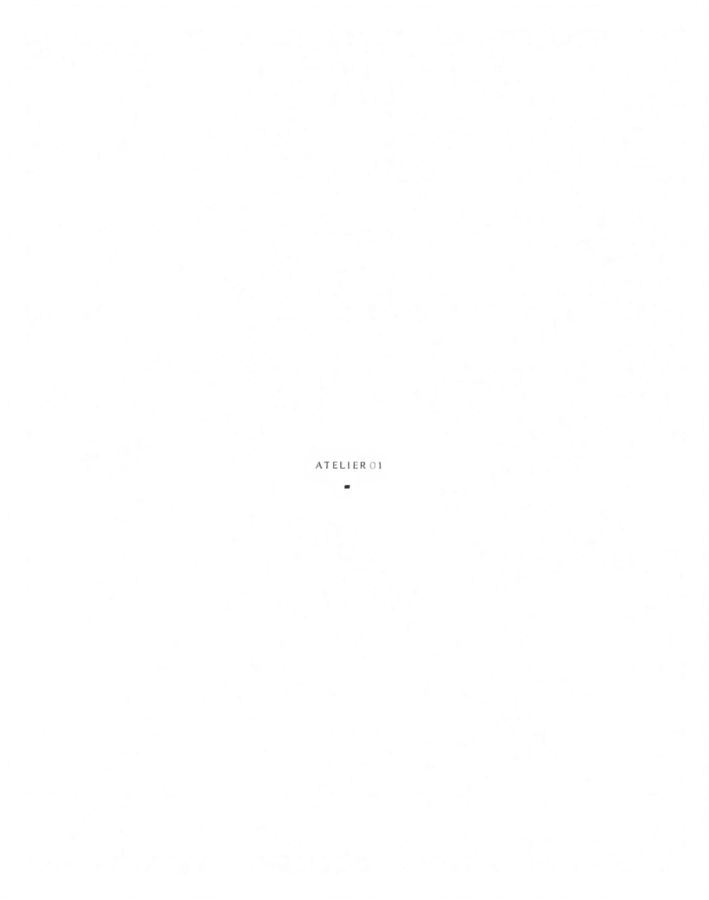
Layer 1 · Label text and mark

Layer 2 · Blank label card
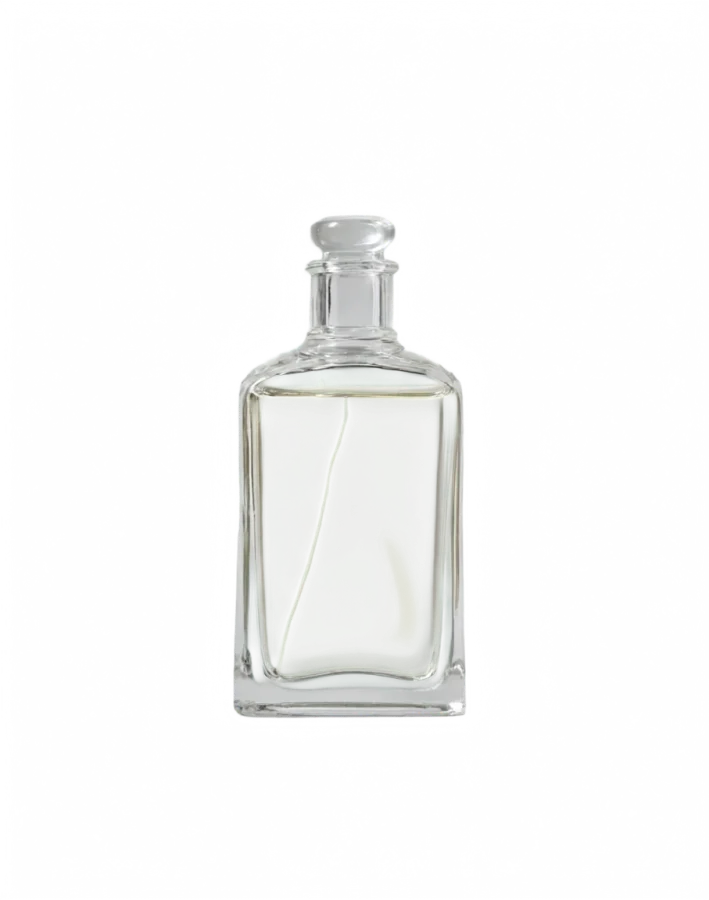
Layer 3 · Bottle
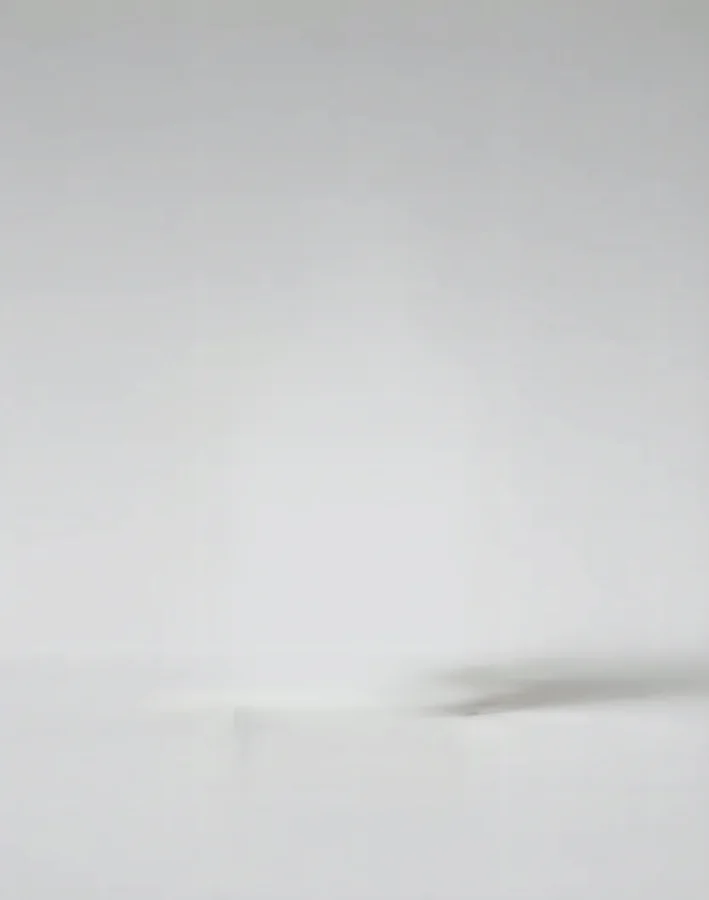
Layer 4 · Backdrop and shadow
What you get back
- 3–4 transparent PNG files per run. The model decides how many layers the design needs.
- All layers share one canvas with the same aspect ratio as your upload, so stacking them at the same position rebuilds the design.
- Layers come front to back: Layer 1 sits on top and the last one is the background.
- Where an element was lifted out, the background layer is filled in, so you can move or delete that element without leaving a hole.
How to split a design into layers
- 1
Upload one flat design
JPG, PNG or WebP. Posters, labels, covers and social frames with clear shapes split best. Large images are scaled to 1536 px on the long side before processing.
- 2
Run the split
Each run costs 8 credits and takes about 30 seconds. If a run fails, the credits return to your balance automatically.
- 3
Download and stack
Download layers one by one or all at once. In Photoshop, Figma or Canva, stack them at the same position on one canvas, with Layer 1 on top.
When a layered file saves time
Translate a poster
Replace the headline layer with another language and keep the artwork and background exactly as they were.
Refit a design for another size
Use the clean background plate and move the headline and product to fit a banner, story or square post.
Change a pack shot's backdrop
Keep the product layer, recolor or replace the backdrop, and leave the label untouched.
Hand off an AI-made design
Give a designer separate layers instead of a flat JPG when a generated poster needs final edits.
Limits to know before you run it
- Text comes back as pixels in its own layer, not as editable type. Retype it if you need to change the words.
- Output is PNG only. There is no PSD, vector or ZIP export.
- Busy photos with overlapping objects may merge several things into one layer; flat graphics separate more cleanly.
- One image per run, and you can't choose which element goes into which layer.
Questions
Have a flat design that needs editing?
Split it into layers here, or create a new poster first with the Ming Image 0.1 Design generator.